





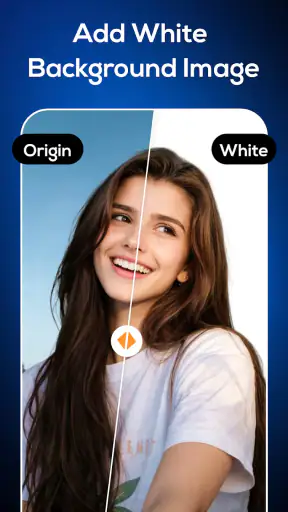


I tried Remove background & Object as a quick photo-cleanup tool rather than treating it like a full design studio. That distinction matters. Its purpose is narrow: isolate a subject, clear away an unwanted object, and leave an image looking less cluttered. For product photos, profile pictures, simple social posts, and small visual fixes, that focus can be useful. For detailed compositing, layered artwork, or professional retouching, I would look elsewhere.
The app sits in the Art & Design category and is made by Avn Global Application. It is free to install, suitable for Everyone, and works on devices running Android 7.0 or later. The current version is 1.8.7_08072026. Its store presence is fairly substantial, with over five million installs and an average rating of 3.5 from around twenty-one thousand ratings. I read that combination as a reason to test it carefully: plenty of people have tried it, but the middle-of-the-road score suggests that results and ease of use may vary by image.
What the app is really useful for
The strongest use case is a one-image task where the desired result is obvious. Imagine taking a photo of a chair for a second-hand listing and noticing a delivery box in the corner. A conventional editor can remove it, but that may require several tools and a steady hand. An object-removal app is more appealing when I want to mark the distraction, inspect the result, and save a cleaner version without building a complete editing project.
Background removal is similarly practical for simple cutouts. I can see the appeal for someone preparing a marketplace image, making a basic sticker, or placing a person or item over a plain visual. The app’s short description is simply “Remove background,” while its broader summary also points to unwanted-object cleanup. That tells me to approach it as a focused utility, not as an all-purpose graphics package.
There is also a useful difference between removing a background and removing an object inside a scene. A background cutout usually needs the app to understand the main subject and separate it from surrounding pixels. Object cleanup needs it to reconstruct what should appear behind the selected area. Those are different jobs, and I would judge each result separately instead of assuming a good cutout guarantees a convincing repair.
The best results come from giving the app a simple visual problem, not an impossible restoration job. A sharply defined subject against a reasonably clear background is a friendlier test than hair against foliage, transparent glass on a patterned table, or a person crossing a busy crowd. That is not a criticism unique to this app; it is the basic trade-off of automated image editing. The convenience comes from letting software make the first selection, while precision still depends on the source image.
Where a quick edit saves time
I would reach for it when speed matters more than complete control. A casual seller may need a cleaner listing photo before posting it. A student might want to remove a distracting sign from a presentation image. Someone preparing a profile picture may prefer to separate a face or upper body from a messy room. In all three cases, the value is not artistic depth; it is reducing the number of manual steps between the original photo and a usable result.
A helpful workflow is to duplicate the original before editing. I would then start with the smallest change that solves the problem: remove one distracting item rather than trying to “clean” the entire scene. Afterward, I would inspect edges at a larger view, especially around hair, fingers, thin straps, leaves, and furniture legs. These areas can look acceptable at thumbnail size and visibly rough when the image is shared or printed.
For a product image, I would also check the contact area around the item. An automatic cutout may follow the outer contour but leave a faint halo, while object removal may create a texture that does not match the table or wall. A clean outline is not enough if the repaired background has repeated patterns, a strange blur, or a shadow that suddenly stops. That final inspection is the difference between a genuinely useful edit and one that merely looks impressive for a moment.
Trust begins with what I can actually verify
Because this app works with personal photos, trust is part of the decision, not an afterthought. I would pay attention to the permission prompts shown on my own device and to any privacy or data choices presented inside the app or its store materials. I would not assume that an editing tool needs broad access simply because it handles images. If a prompt feels wider than the task requires, I would pause and decide whether granting it is worthwhile.
The safest habit is to choose photos deliberately instead of treating the entire gallery as available by default. If the operating system offers a photo picker or limited selection, I would use that option for a single edit. It reduces accidental exposure of unrelated images and keeps the task easy to understand. I would also avoid importing documents, screenshots containing account details, children’s photos, or anything sensitive unless I had a clear reason to do so.
There is a practical trust check after editing as well. Before saving or sharing, I would look at the destination and any visible choices around export, advertising, or purchases. I would not tap through a prompt automatically. The app is free, but optional in-app purchases range from $3.99 to $44.99 per item, so a user should read the wording on any upgrade screen and confirm what is being offered before continuing.
That price range does not tell me whether paying is worthwhile for a particular person. It does tell me to keep an eye on the boundary between the free experience and paid options. If I only need an occasional cutout, I would first complete a representative test image and see whether the available workflow is enough. If the result is poor on the kind of photos I actually edit, paying would not solve the underlying quality problem.
Data-sensitive moments deserve extra care
The most sensitive moment is not necessarily the final export; it is the moment an image enters the editing workflow. A photo can contain a face, a home interior, a location clue, a school uniform, or a document in the background. Even when my intention is harmless, the image may reveal more than the object I want to remove. I would crop or blur unrelated details first when possible, and I would use a less sensitive sample image while learning the controls.
I would also separate editing convenience from account control. If the app presents an account option, I would check what signing in changes, whether it is necessary for the task, and what choices are visible for managing that account. If an account is not needed for a simple edit, I prefer not to create one merely to test a feature. If I do create one, I want clear access to the relevant settings and a straightforward way to stop using it.
Notifications and promotional prompts deserve the same attention. I would allow only the notifications that have an obvious benefit, rather than accepting every request during setup. If the app offers visible toggles for recommendations, reminders, or promotional communication, I would make those choices intentionally. A clean editing workflow should not require me to surrender control over unrelated parts of my phone experience.
My approach is deliberately conservative because image apps can feel informal. A quick picture of a room may seem unimportant, yet it can show where I live and what I own. A product photo may include an invoice or shipping label. A portrait may belong to someone who has not agreed to have it processed. Remove background & Object can be convenient without becoming the right place for every image I have.
How it compares with familiar alternatives
Compared with a standard phone editor, this app has a clearer purpose. A built-in editor is usually better for cropping, rotating, adjusting brightness, and making broad corrections. It may be the better choice when the unwanted element is near an edge and a simple crop solves the problem. Using the phone’s own tools can also feel more predictable because I already know where the files and basic controls are.
Compared with a full design app, this one should be easier to approach for a single background cutout or object cleanup. The trade-off is control. A design-focused editor is generally the better fit when I need layers, masks, typography, repeated revisions, exact placement, or a reusable project. If I am creating a poster rather than fixing one photo, I would rather work in a tool built around composition than force a focused remover to do that job.
Manual retouching software remains preferable for high-stakes images. A photographer, online shop owner, or designer may need to correct edges pixel by pixel, preserve realistic shadows, or match a particular texture. Automated removal can provide a first pass, but it does not replace judgment when the image will represent a business or be printed at a large size. I would use this app for speed and another editor for finishing when quality matters more than convenience.
There is also a privacy trade-off in choosing between a specialized app and a tool already included with a device or service I use. I would compare the visible permissions, account requirements, and user choices rather than assuming that one category is automatically safer. The important question is whether I understand what I am allowing at each step and whether the app gives me enough control to use only the parts I need.
Small techniques that improve the outcome
First, I would test the app with three different images before deciding whether it belongs in my regular toolkit: a clean object on a plain background, a person with some hair detail, and an object placed in a textured scene. This small test reveals more than one successful example. It shows whether the app handles the kinds of edges and backgrounds I actually encounter.
Second, I would remove distractions in stages. If a photo contains several unwanted items, marking everything at once may produce a larger reconstruction area and make mistakes harder to diagnose. Removing the most obvious object first lets me see whether the surrounding texture is being rebuilt convincingly. I can then decide whether the remaining items are worth another pass or whether cropping would look more natural.
Third, I would keep the original and compare the result at the final intended size. A repair that looks strange when enlarged may disappear in a small listing thumbnail, while a barely visible halo can become obvious in a profile image. Conversely, a cutout that seems fine on a phone may look rough when placed on a larger canvas. Checking the actual use case prevents me from spending time correcting flaws nobody will see—or overlooking flaws everyone will see.
Fourth, I would avoid using a solid replacement background as a way to hide a weak edge. A plain color can make a cutout look tidy, but it may also emphasize jagged hair or missing fingers. If the subject is important, I would try a background with gentle contrast rather than an extreme color difference. This is a design choice, not a hidden feature, but it makes the app’s output more forgiving.
Finally, I would save only the version I intend to share and review it once outside the editor. I want to confirm that the correct image was exported, that no unwanted border remains, and that the composition still makes sense without the original context. This is especially useful when creating several variations for a listing or social post, where similar thumbnails can make it easy to select the wrong file.
Who should use it and who should skip it
I think it is a reasonable choice for casual Android users who want a focused way to clean up photos without learning a large design application. It may suit marketplace sellers, students, social media users, and anyone who occasionally needs a subject isolated or a distraction removed. The free entry point makes it easy to test, and the Everyone rating makes its intended audience broad.
I would be more cautious about recommending it to professionals who need repeatable, exact results. If every image must have a consistent edge, a natural shadow, and a specific export setup, a more advanced editor is likely to save time in the long run. I would also skip it for confidential images unless the permission and data choices shown during use are clear enough for me to make an informed decision.
People who dislike purchase prompts should pay attention during the first session. The app can be installed without an upfront charge, but the presence of optional items up to $44.99 means that “free” should be understood as a way to begin, not as a promise that every capability will remain unrestricted. I would never approve a purchase just to discover whether a feature works on my image.
My cautious verdict
After looking at its purpose, practical workflow, and trust considerations, I see Remove background & Object as a useful specialist rather than a complete photo editor. It can make a small visual problem much less annoying, particularly when the subject is clear and the desired change is limited. Its value is highest when I need a quick first pass and am willing to inspect the result instead of accepting automation blindly.
The average rating of 3.5 suggests a mixed experience, and that feels plausible for an app whose success depends heavily on image complexity. A clean product shot and a crowded portrait are not equivalent tests. I would judge it on my own photos, starting with non-sensitive images and checking every permission, account, notification, and purchase choice as it appears.
My recommendation is therefore conditional but positive: try it if you want straightforward background or object cleanup and can tolerate occasional manual checking. Keep a regular editor available for precision work, preserve your originals, and do not upload personal images casually. If the app handles your typical photos cleanly, its focused approach may be exactly what you need; if it struggles with edges or gives you too little control, moving to a more capable alternative is the sensible next step.


